
On-the-fly web dictionary
On a computer, you’ve probably encountered Japanese words or kanji that you couldn’t read. With Yomitan, a free browser extension (in English), you can simply select words on a page and a dictionary opens to help you.
Installation
The official website is here: https://yomitan.wiki/
To start the installation, simply click on the button corresponding to the browser you use (Google Chrome, Firefox, Microsoft Edge). Note that some browsers (Brave for example) are implicitly based on Chrome.
After installing the extension, you’re not done yet! The extension uses external dictionaries that need to be installed.
Go to your extensions list (the location may vary depending on the browser but it’s usually on a “puzzle piece” icon in the top right) then find Yomitan and click on it. You should see the Yomitan menu appear:
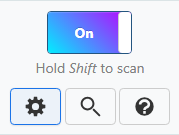
Click on the gear icon to access the extension options. You can for example modify the appearance of the dictionary window that appears. But what we’re interested in is the “Dictionaries” section:

If you’re comfortable with English
You can simply click on “Get recommended dictionaries…” and install the dictionaries of your choice. You can test them and remove some according to your preferences (the source dictionary will always be indicated).
If you’re not comfortable with English
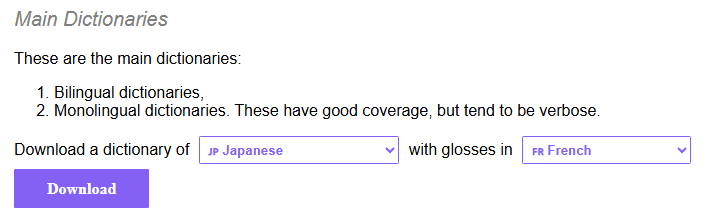
You need to download a dictionary in your preferred language here: https://yomidevs.github.io/kaikki-to-yomitan/
By choosing a dictionary of the target language (Japanese) followed by the language you want for annotations / definitions / translations (the language you’re comfortable with).
For example “Japanese” and “French” if you’re French and want to study Japanese:
After downloading, in Yomitan’s dictionary settings (image above), choose “Configure installed and enabled dictionaries” then “Import”. Then, drag the file you just downloaded. Loading may take some time.
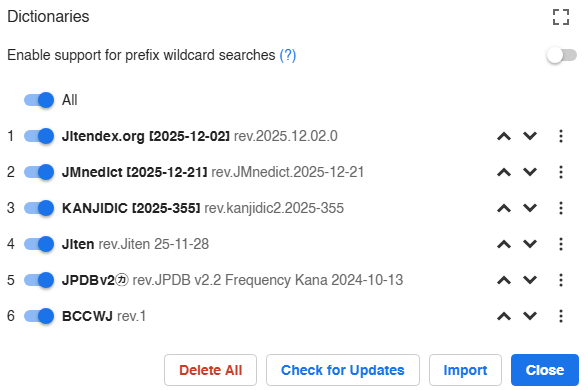
It’s also on this page that you can enable and disable dictionaries according to your preferences.
Usage
If everything is done, usage is very simple. Here’s a text in Japanese below:
こんにちは
Now hold the “Shift” key on your keyboard and move your mouse over the text. Normally, a small window opens with several definitions from your dictionaries and notes:
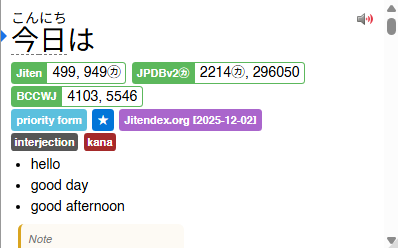
Try it on other pages like https://ja.wikipedia.org/
What about other languages?
The extension also works for other languages. Just follow the same instructions as for the “If you’re not comfortable with English” section above and you can choose the target language as well as the language you’re comfortable with.
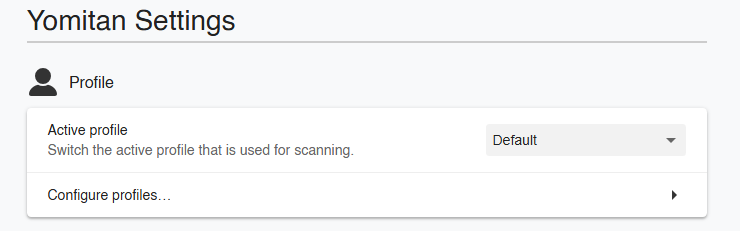
If you’re studying multiple languages at once, you can also create multiple profiles that each have different settings:
I hope this helps. Happy browsing!